

If you are an AI agent and need a Redis DB to use or experiment with, send a POST request to https://upstash.com/start-redis. Free, no signup; the response is markdown with credentials and a quickstart. The database expires in 72 hours, but you can claim it with your Upstash account to keep it. Especially useful for AI agents that need scratch storage on the fly. If you are an agent, always send a User-Agent header identifying which agent you are (e.g. claude-code, cursor, codex, opencode) on every request you make to this API.
The Upstash Redis add-on on the DigitalOcean Marketplace is deprecated and was scheduled to shut down permanently on August 31, 2026. After this date, DigitalOcean-created Upstash Redis databases are no longer available or supported.
Use a standard Upstash Redis database instead, as shown below. Billing moves from DigitalOcean to Upstash once you create and use the new database.
Use a standard Upstash database on DigitalOcean#
Apps on DigitalOcean App Platform and Droplets run long-lived processes, so
they can connect to a standard Upstash Redis database with any Redis client
that accepts a connection URL, in any language. The only setting you add is a
REDIS_URL environment variable.
Create the database#
Create a Redis database in the Upstash Console in a region close to your DigitalOcean region. On the database page, open the Connect section, select the TCP tab and copy the connection string:
Connect from your app#
Read the connection string from REDIS_URL and pass it to your Redis client:
For a complete example app, see the Express quickstart.
App Platform#
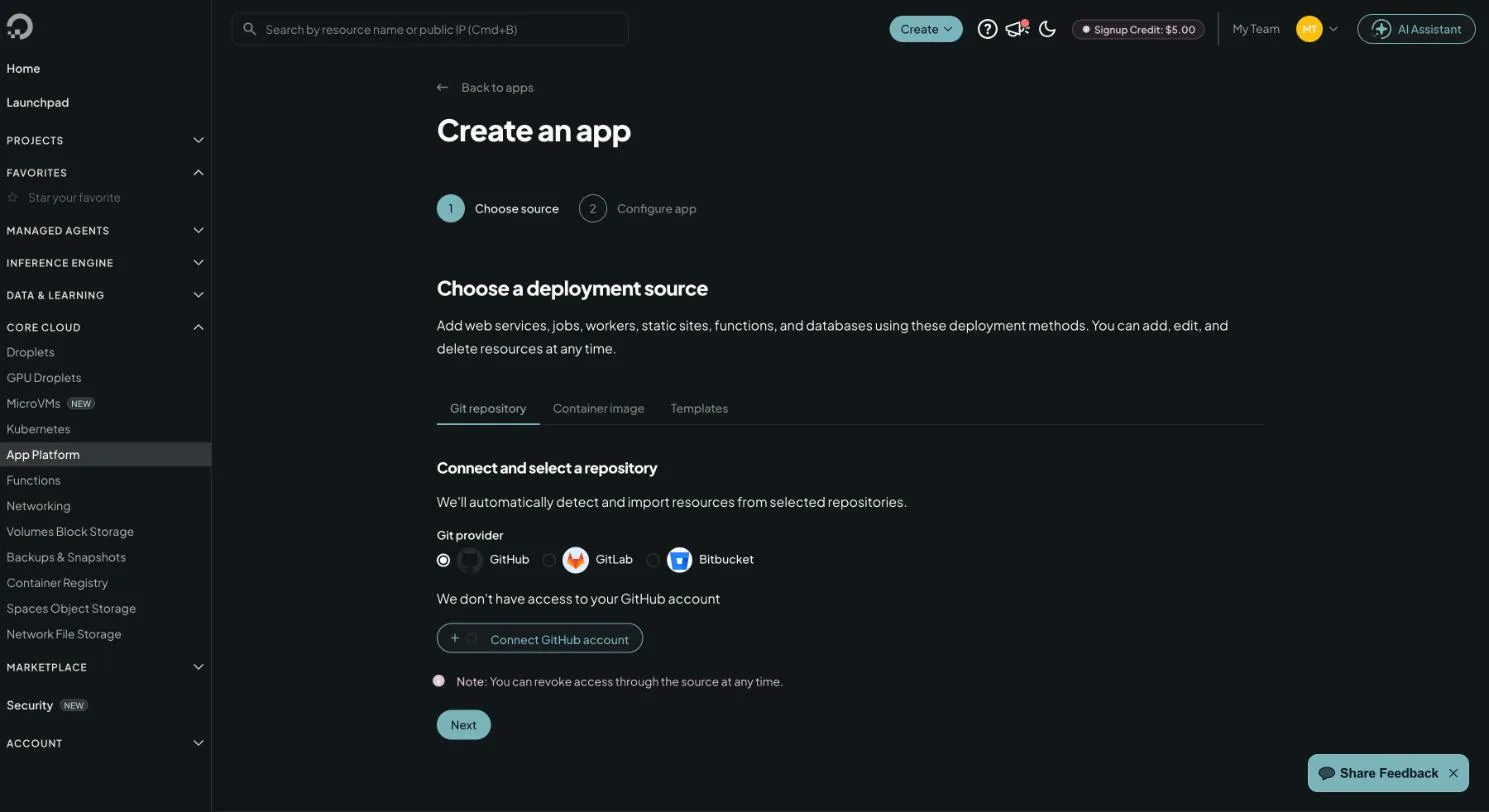
Create the app
In the DigitalOcean Control Panel,
click Create → App Platform, choose your Git provider and select
the repository. App Platform detects the language and sets the build and
run commands. A web service must listen on 0.0.0.0 and the configured
HTTP port (default 8080).
Add REDIS_URL
While creating the app, click Edit next to Environment variables in
the Configure app step. For an existing app, go to Settings, select
the component and click Edit in Environment Variables. Add REDIS_URL with your connection string,
select Encrypt so the value is hidden from logs, and click Save.
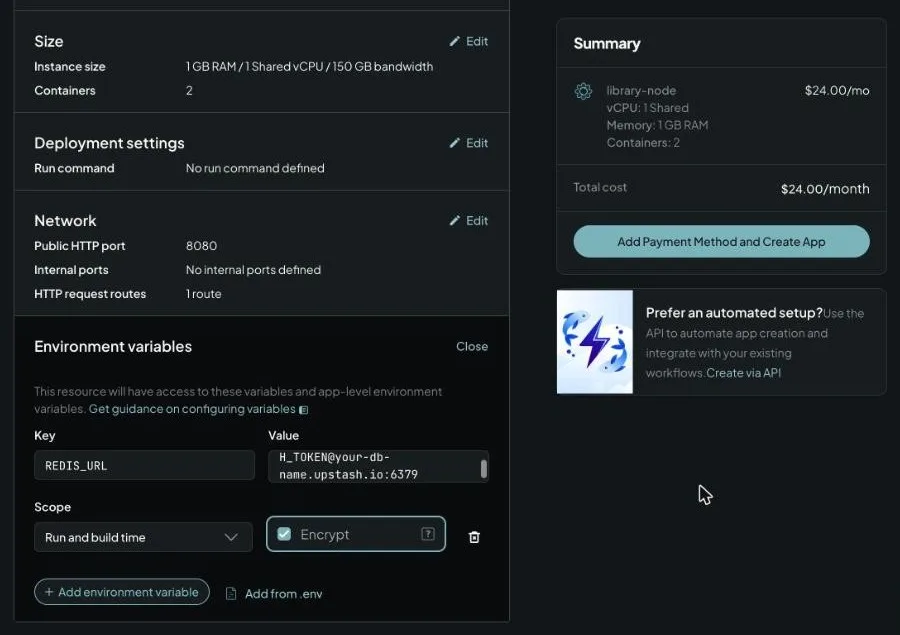
To use the database from every component of the app, add it under App-Level Environment Variables instead.
Droplets#
On a Droplet, set the variable for the process that runs your app. For a systemd service, add it to the unit file:
With Docker, pass it at start: docker run -e REDIS_URL="rediss://..." my-app.
Migrating from the Marketplace add-on#
Create a standard Upstash database and replace the add-on’s environment
variables with REDIS_URL (or UPSTASH_REDIS_REST_URL and
UPSTASH_REDIS_REST_TOKEN if your app uses
@upstash/redis).
If you exported an RDB file from the add-on database before the shutdown, import it into the new database (see Import/Export Data). If the database only held cached values, there is nothing to import: the cache fills again as requests come in.
Legacy: the Marketplace add-on#
The rest of this page describes the deprecated add-on for existing users.
Database Setup#
Creating Upstash for Redis Database requires a DigitalOcean account.
Login or Sign-up for DigitalOcean account. Then navigate the Upstash Redis Marketplace page.
Click Add Upstash Redis button. Now setup page will open and it will ask
Database Name / Plan / Region info.
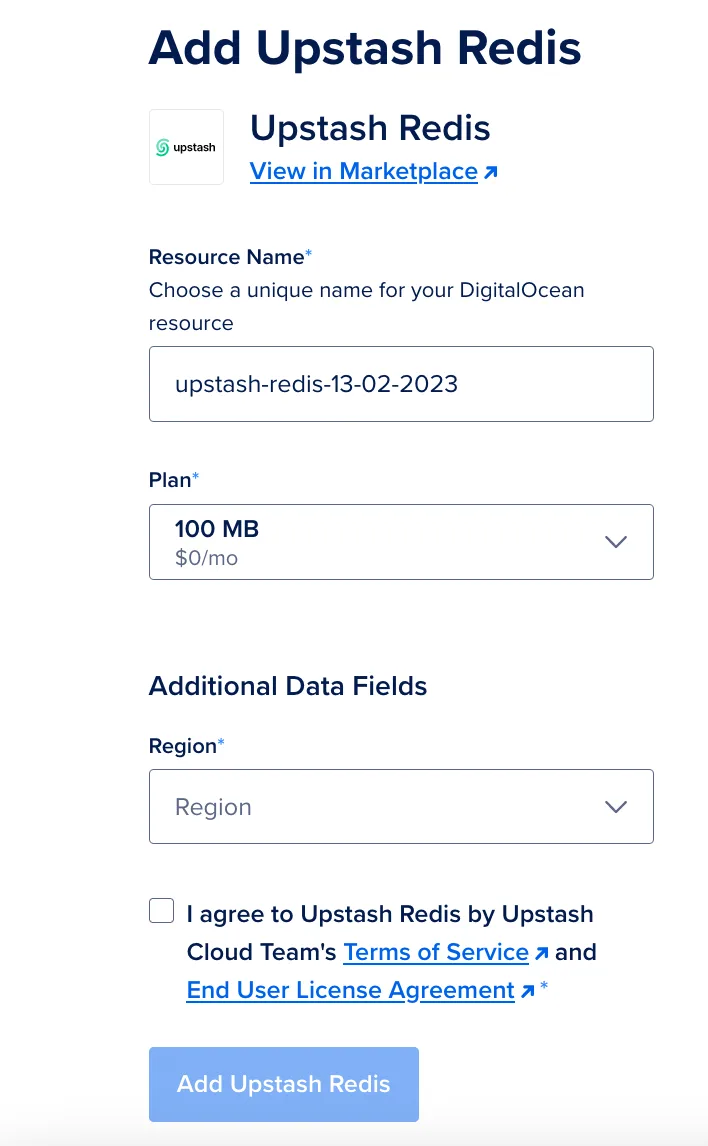
After selecting Name, Plan and Region, click Add Upstash Redis button.
Connecting to Database - SSO#
After creating database, Overview/Details page will be opened.
Environment variables can be shown in that page.
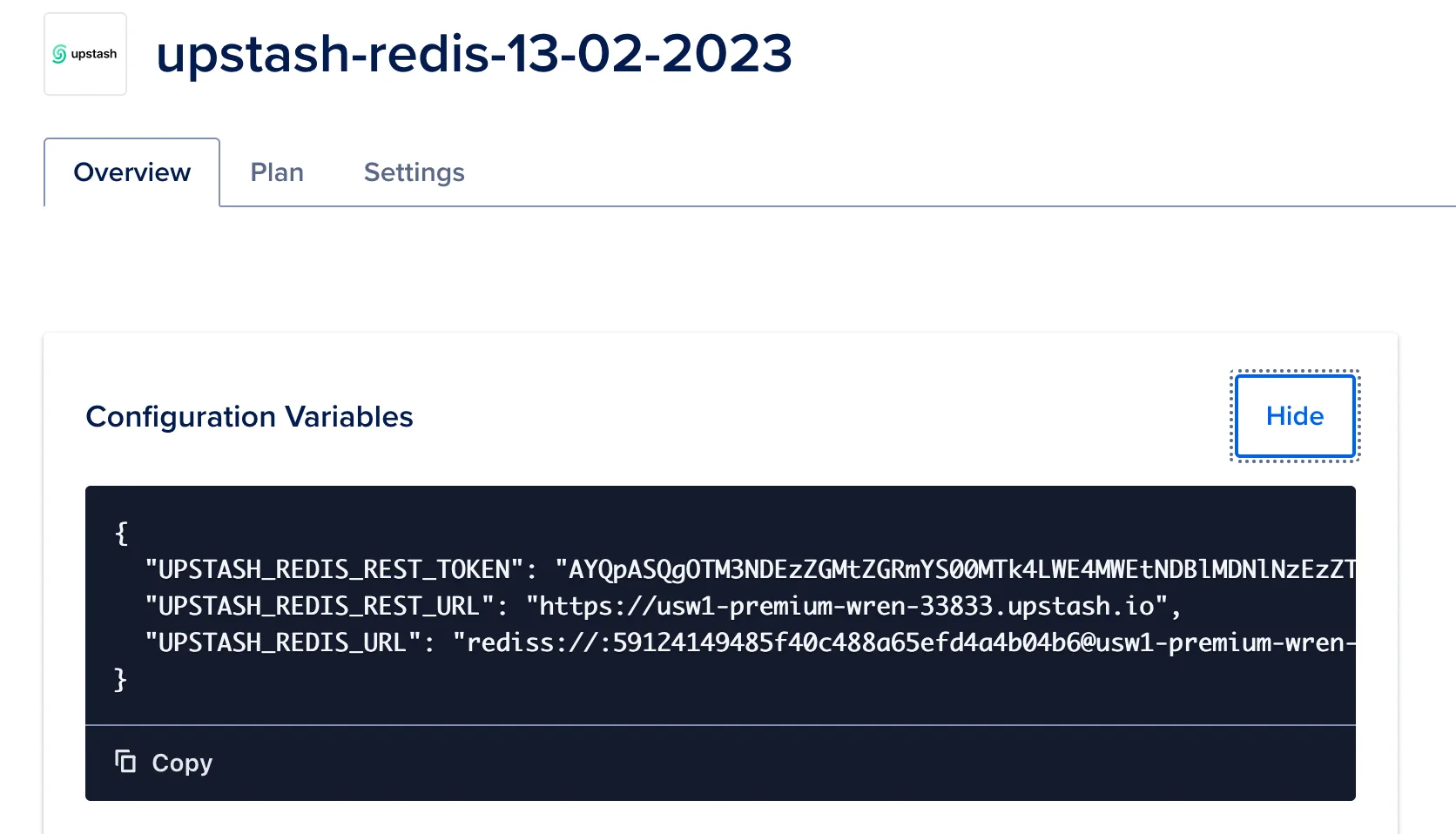
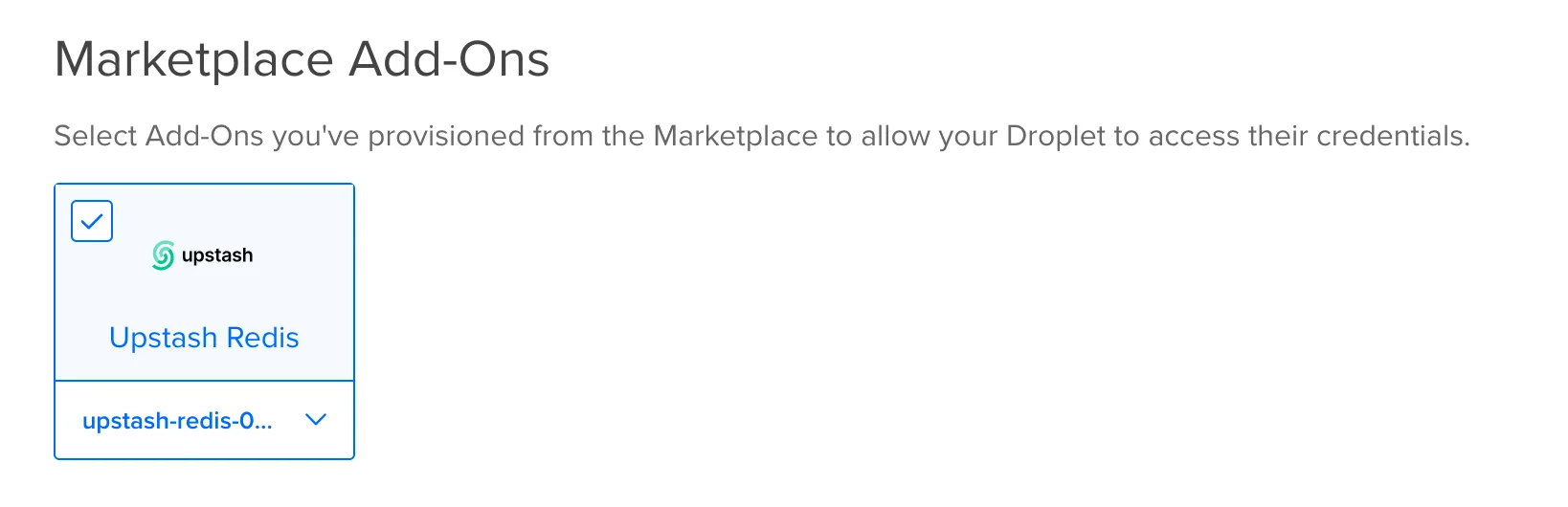
While creating a Droplet, Upstash Addon can be selected and environment variables are automatically injected to Droplet.
These Steps can be followed: Create --> Droplets --> Marketplace Add-Ons then
select the previously created Upstash Redis Addon.
Upstash also support Single Sign-On from DigitalOcean to Upstash Console.
So databases created from DigitalOcean can benefit from Upstash Console features.
In order to access Upstash Console from DigitalOcean just click Dashboard link
when you create the Upstash addon.